ODBC Data Sources
A common way to integrate other systems with Evo-ERP is to use ODBC data sources to access the Evo-ERP databases. For this to work, it is necessary to setup the data sources in Windows and connect them to the databases in the Zen Control Center.
Verify Databases in Zen Control Center
Before creating the ODBC data sources, check that the databases exist in the Zen Control Center for the companies you are going to connect to using ODBC. As of 2025.1, this should be done automatically by the update process for Evo-ERP. Each company should have an associated database named EVO followed by the company code, e.g., EVOB or EVOB99. If the database does not exist for the company you want to access, go to UT-A and run ODBCDDF.
Create Data Sources
Connection String
Actian has documentation on how to create an ODBC DSN connection string available here: Actian Corporation.
With the connection string, you can use ODBC within other programs to connect to the database.
Using ODBC Data Sources
- Open the
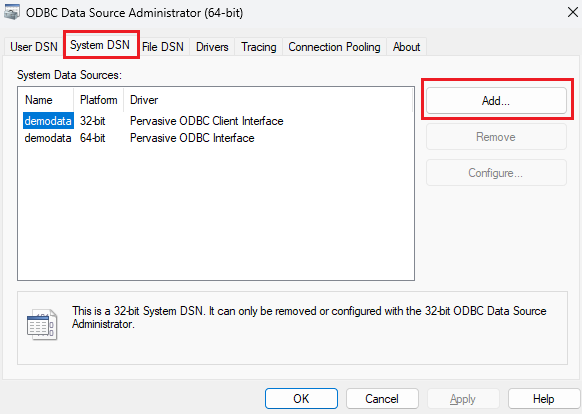
ODBC Data Sources (64-bit)in Windows on the server. - Choose the System DSN tab at the top.
- Choose Add… on the right menu. It should look something like this:
- Choose Pervasive ODBC Interface from the driver options.
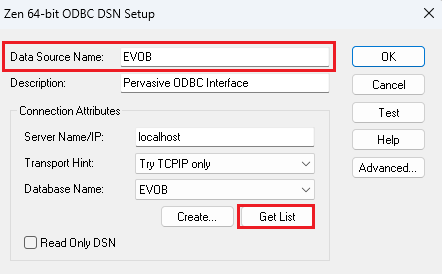
- For Data Source Name we recommend using the same name as the database in the Zen Control Center (e.g.,
EVOB). - Click Get List to lookup the Pervasive/Zen databases. The database for the company you are setting up should appear in the list. If not, the database does not exist in the Zen Control Center so you will need to check that before continuing. Select the database from the list. After populating the Data Source Name and Database Name the window should look similar to this:
. - Click Test and you should see that the connection is successful. If so, you can click OK and the data source should be configured properly.
Using PowerShell
You can also create the data source with the following PowerShell command (you must be an administrator to create a system DSN):
Add-OdbcDsn -Name “EVOB” -DriverName “Pervasive ODBC Interface” -DsnType “System” -SetPropertyValue @(“ServerName=localhost”, “DBQ=EVOB”)
Replace the Name and DBQ values with the database name from the Zen Control Center. If you are setting up the DSNs on a server that isn’t the server where Zen is installed, also modify the ServerName value.